
Saving Data to MongoDB Database from Node.js Application Tutorial

Jennifer Bland
The MEAN stack is used to describe development using MongoDB, Express.js, Angular.jS and Node.js. In this tutorial I will show you how to use Express.js, Node.js and MongoDB.js. We will be creating a very simple Node application, that will allow users to input data that they want to store in a MongoDB database. It will also show all items that have been entered into the database. Before we get started I will describe a few terms that you will frequently hear when creating a MEAN stack application. After that we will start building our example.
CRUD
CRUD is an acronym that means Create, Read, Update and Delete. It is used to describe the process of having your data persisted into a database. In this example you will be providing examples of Creating new data into the database and then Reading the data from the database.
Restful API
A RESTful API is an application program interface that uses HTTP requests to GET, PUT, POST and DELETE data. We will be using an API to define when we add data to our database and when we read from the database.
Creating a Node Application
To get started I would recommend creating a new database that will contain our application. For this demo I am creating a directory called node-demo. After creating the directory you will need to change into that directory.
mkdir node-demo
cd node-demo
Once we are in the directory we will need to create an application and we can do this by running the command npm init This will ask you a series of questions. Here are the answers I gave to the prompts. 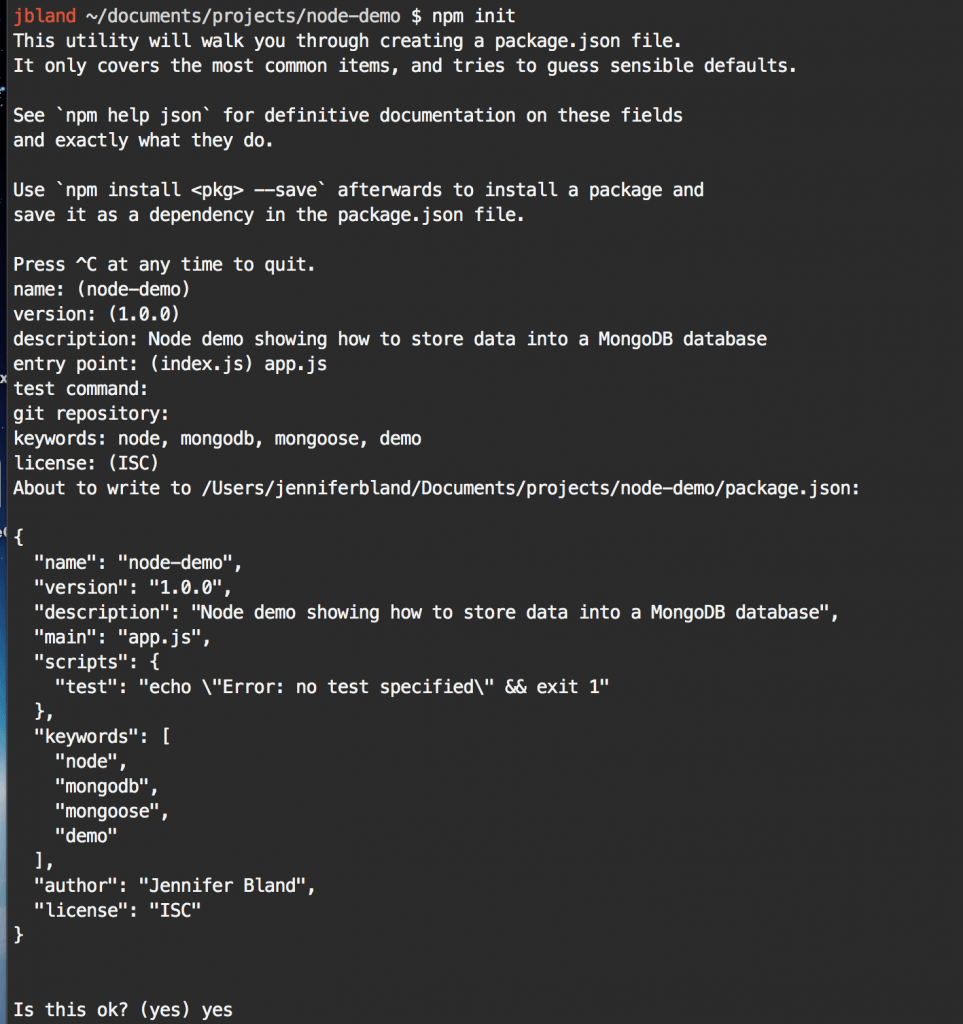
The first step is to create a file that will contain our code for our Node.js server.
touch app.js
In our app.js we are going to add the following code to build a very simple Node.js Application.
var express = require("express");
var app = express();
var port = 3000;

app.get("/", (req, res) => {
  res.send("Hello World");
});

app.listen(port, () => {
  console.log("Server listening on port " + port);
});
What the code does is require the express.js application. It then creates app by calling express. We define our port to be 3000. The app.use line will listen to requests from the browser and will return the text "Hello World" back to the browser. The last line actually starts the server and tells it to listen on port 3000.
Installing Express
Our app.js required the Express.js module. We need to install express in order for this to work properly. Go to your terminal and enter this command.
npm install express --save
This command will install the express module into our package.json. The module is installed as a dependency in our package.json as shown below. 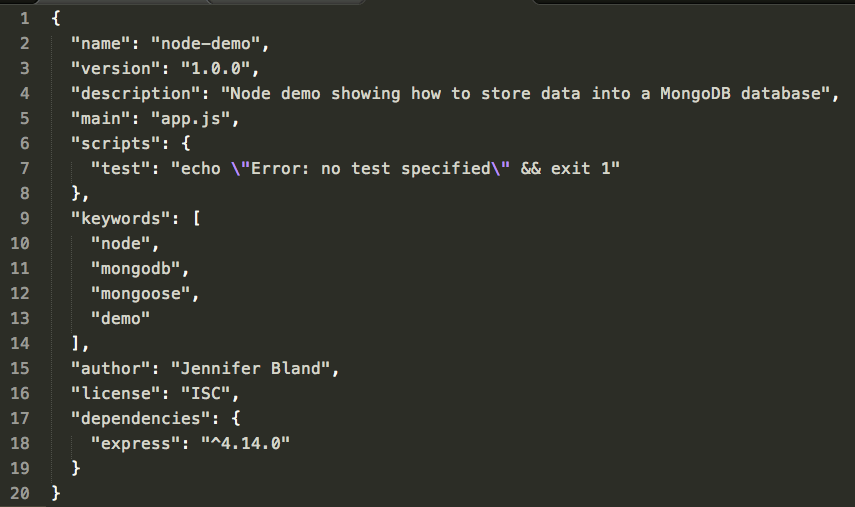
To test our application you can go to the terminal and enter the command
node app.js
Open up a browser and navigate to the url http://localhost:3000 You will see the following in your browser 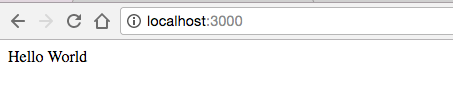
Creating Website to Save Data to MongoDB Database
Instead of showing the text "Hello World" when people view your application, what we want to do is to show a place for user to save data to the database. We are going to allow users to enter a first name and a last name that we will be saving in the database. To do this we will need to create a basic HTML file. In your terminal enter the following command to create an index.html file.
touch index.html
In our index.html file we will be creating an input filed where users can input data that they want to have stored in the database. We will also need a button for users to click on that will add the data to the database. Here is what our index.html file looks like.
<!DOCTYPE html>
<html>
<head>
<title>Intro to Node and MongoDB<title>
<head>
<body>
<h1>Into to Node and MongoDB</h1>
<form method="post" action="/addname">
<label>Enter Your Name</label><br>
<input type="text" name="firstName" placeholder="Enter first name..." required>
<input type="text" name="lastName" placeholder="Enter last name..." required>
<input type="submit" value="Add Name">
</form>
<body>
<html>
If you are familiar with HTML, you will not find anything unusual in our code for our index.html file. We are creating a form where users can input their first name and last name and then click an "Add Name" button. The form will do a post call to the /addname endpoint. We will be talking about endpoints and post later in this tutorial.
Displaying our Website to Users
We were previously displaying the text "Hello World" to users when they visited our website. Now we want to display our html file that we created. To do this we will need to change the app.use line our our app.js file. We will be using the sendFile command to show the index.html file. We will need to tell the server exactly where to find the index.html file. We can do that by using a node global call __dirname. The __dirname will provide the current directly where the command was run. We will then append the path to our index.html file. The app.use lines will need to be changed to app.use("/", (req, res) => { res.sendFile(__dirname + "/index.html"); }); Once you have saved your app.js file, we can test it by going to terminal and running node app.js Open your browser and navigate to "http://localhost:3000". You will see the following 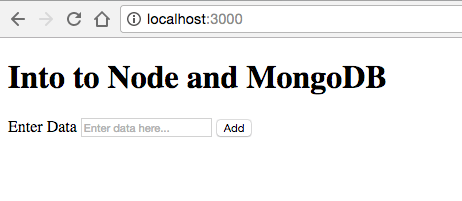
Connecting to the Database
Now we need to add our database to the application. We will be connecting to a MongoDB database. I am assuming that you already have MongoDB installed and running on your computer. To connect to the MongoDB database we are going to use a module called Mongoose. We will need to install mongoose module just like we did with express. Go to your terminal and enter the following command. npm install mongoose --save This will install the mongoose model and add it as a dependency in our package.json.
Connecting to the Database
Now that we have the mongoose module installed, we need to connect to the database in our app.js file. MongoDB, by default, runs on port 27017. You connect to the database by telling it the location of the database and the name of the database. In our app.js file after the line for the port and before the app.use line, enter the following two lines to get access to mongoose and to connect to the database. For the database, I am going to use "node-demo". var mongoose = require("mongoose"); mongoose.Promise = global.Promise; mongoose.connect("mongodb://localhost:27017/node-demo");
Creating a Database Schema
Once the user enters data in the input field and clicks the add button, we want the contents of the input field to be stored in the database. In order to know the format of the data in the database, we need to have a Schema. For this tutorial, we will need a very simple Schema that has only two fields. I am going to call the field firstName and lastName. The data stored in both fields will be a String. After connecting to the database in our app.js we need to define our Schema. Here are the lines you need to add to the app.js. var nameSchema = new mongoose.Schema({ firstName: String, lastNameName: String }); Once we have built our Schema, we need to create a model from it. I am going to call my model "DataInput". Here is the line you will add next to create our mode. var User = mongoose.model("User", nameSchema);
Creating RESTful API
Now that we have a connection to our database, we need to create the mechanism by which data will be added to the database. This is done through our REST API. We will need to create an endpoint that will be used to send data to our server. Once the server receives this data then it will store the data in the database. An endpoint is a route that our server will be listening to to get data from the browser. We already have one route that we have created already in the application and that is the route that is listening at the endpoint "/" which is the homepage of our application.
HTTP Verbs in a REST API
The communication between the client(the browser) and the server is done through an HTTP verb. The most common HTTP verbs are GET, PUT, POST, and DELETE. The following table explains what each HTTP verb does.
| HTTP Verb | Operation |
|---|---|
| GET | Read |
| POST | Create |
| PUT | Update |
| DELETE | Delete |
As you can see from these verbs, they form the basis of CRUD operations that I talked about previously.
Building a CRUD endpoint
If you remember, the form in our index.html file used a post method to call this endpoint. We will now create this endpoint. In our previous endpoint we used a "GET" http verb to display the index.html file. We are going to do something very similar but instead of using "GET", we are going to use "POST". To get started this is what the framework of our endpoint will look like. app.post("/addname", (req, res) => { });
Express Middleware
To fill out the contents of our endpoint, we want to store the firstName and lastName entered by the user into the database. The values for firstName and lastName are in the body of the request that we send to the server. We want to capture that data, convert it to JSON and store it into the database. Express.js version 4 removed all middleware. To parse the data in the body we will need to add middleware into our application to provide this functionality. We will be using the body-parser module. We need to install it, so in your terminal window enter the following command. npm install body-parser --save Once it is installed, we will need to require this module and configure it. The configuration will allow us to pass the data for firstName and lastName in the body to the server. It can also convert that data into JSON format. This will be handy because we can take this formatted data and save it directly into our database. To add the body-parser middleware to our application and configure it, we can add the following lines directly after the line that sets our port. var bodyParser = require('body-parser'); app.use(bodyParser.json()); app.use(bodyParser.urlencoded({ extended: true }));
Saving data to database
Mongoose provides a save function that will take a JSON object and store it in the database. Our body-parser middleware, will convert the user's input into the JSON format for us. To save the data into the database, we need to create a new instance of our model that we created early. We will pass into this instance the user's input. Once we have it then we just need to enter the command "save". Mongoose will return a promise on a save to the database. A promise is what is returned when the save to the database completes. This save will either finish successfully or it will fail. A promise provides two methods that will handle both of these scenarios. If this save to the database was successful it will return to the .then segment of the promise. In this case we want to send text back the user to let them know the data was saved to the database. If it fails it will return to the .catch segment of the promise. In this case, we want to send text back to the user telling them the data was not saved to the database. It is best practice to also change the statusCode that is returned from the default 200 to a 400. A 400 statusCode signifies that the operation failed. Now putting all of this together here is what our final endpoint will look like. app.post("/addname", (req, res) => { var myData = new User(req.body); myData.save() .then(item => { res.send("item saved to database"); }) .catch(err => { res.status(400).send("unable to save to database"); }); });
Testing our code
Save your code. Go to your terminal and enter the command node app.js to start our server. Open up your browser and navigate to the URL "http://localhost:3000". You will see our index.html file displayed to you. Make sure you have mongo running. Enter your first name and last name in the input fields and then click the "Add Name" button. You should get back text that says the name has been saved to the database like below. 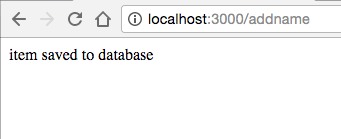
Access to Code
The final version of the code is available in my Github repo. To access the code click here. If you like this tutorial, please star my github repo.