
How to Program a Calculator with jQuery
Learn how to program a calculator with jQuery.

Jennifer Bland
Previously, I showed you how to use CSS border-radius property to create the following calculator. Now I will show you how to use jQuery to implement the functionality of the calculator. 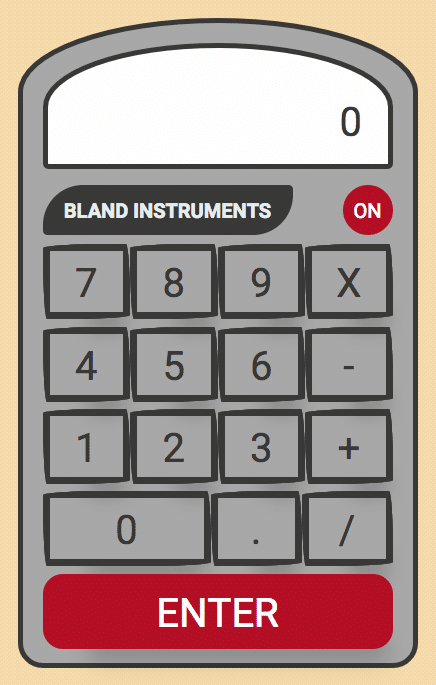
Calculator using the CSS border-radius feature
Adding jQuery
We will be using jQuery in this project to respond to events when a user clicks on a button. We need to add the jQuery library to our application. I will use the cdnjs CDN library to add jQuery. At the bottom of my index.html file, I will add the following script tag:
<script src=”https://cdnjs.cloudflare.com/ajax/libs/jquery/3.3.1/jquery.min.js"></script>
Handling operator vs number buttons
Before writing my code, I decided to brainstorm how I would handle the functionality behind the calculator. I divide the buttons on the calculator into two groups: operator and number. A number button would correspond to the numbers 0–9. All other buttons are operators.
Global variables for our operation
The next step is to determine how may global variables we will need. The global variables will hold the functionality of our calculator. For example, a user can enter the following sequence:
2 + 3 = 5
Likewise, a user can enter this much longer sequence:
2 + 3 * 4 / 5 - 6 = -2
When considering global variables initially, we might consider creating a new variable every time the user presses a key. This would not be very efficient. We would have to keep track of who knows how many variables as the user presses keys. To improve on this, we can simplify things to only need four global variables:
- num1
- num2
- operator
- total
Let me show you how this works. The first number the user presses is stored in variable num1. The operator (i.e. +, — , *, / or enter) is stored in the operator. The next number entered is stored in variable 2. Once the second operator is entered, the total is calculated. The total is stored in the variable total. A logical question would be what do you do with the third or fourth number that a user enters? The simple answer is that we reuse num1 and num2. Once the total has been calculated, we can replace the value in num1 with the total. We would then need to empty out the operator and num2 variables. Let’s walk through this with our second example from above:
2 + 3 * 4 / 5 - 6 = -2
// num1 is assigned value of 2
// operator is assigned value of +
// num2 is assigned value of 3
// total is assigned the value of 5
// num1 is assigned the value of 5
// num2 and operator are cleared
// operator is assigned value of *
// num2 is assigned value of 4
// total is assigned value of 20
// num1 is assigned value of 20
// num2 and operator are cleared
// operator is stored value of /
// num2 is assigned value of 5
// total is assigned value of 4
// num1 is assigned value of 4
// num2 and operator are cleared
// operator is assigned value of -
// num2 is assigned value of 6
// total is assigned value of -2
// num1 is assigned value of -2
// num2 and operator are cleared
// operator is assigned value of =
Now you see that we can handle every possible combination of buttons pressed by the user by using these 4 variables.
Getting the key the user pressed
Now that we have walked through our logic, we need to start the process of handling the key the user pressed. At the bottom of my index.html file, I will create a script tag that will hold my code. The first step is to get the key that a user pressed. Here is a snippet of my index.html file that shows all the buttons on one row of the calculator:
<div class="flex-row">
    <button class="calc-btn">1</button>
    <button class="calc-btn">2</button>
    <button class="calc-btn">3</button>
    <button class="calc-btn">+</button>
</div>
Every button, whether it is a number or an operator, is defined using a
<button></button>
element. We can use this to catch when a user clicks on a button. In jQuery, you can have a button click function. When a button is clicked, the function is passed an event object. The
event.target
will contain the button that was clicked. I can get the value of the button by using the
innerHTML
property. Here is the code that will console.log the button that a user clicks.
<script>
$(document).ready(function() {
    $('button').on('click', function(e) {
        console.log('e', e.target.innerHTML);
    });
});
</script>
Now if you test the code, you will see the value of the key that you press. This works for every button in the calculator.
Creating our global variables
Now that we have the ability to determine what key was pressed, we need to start storing them in our global variables. I am going to create my four global variables:
let num1 = '';
let num2 = '';
let operator = '';
let total = '';
Handling button when clicked
When a user clicks a button, they will be clicking on a number or an operator. For that reason I am going to create two functions:
function handleNumber(num) {
    // code goes here
}
function handleOperator(oper) {
    // code goes here
}
In my button click function earlier, I can replace the console.log with a call to the appropriate function. To determine whether a button or operator was clicked, I can compare e.target.innerHTML to see if it is between 0 and 9. If it is, the user clicked a number. If not, the user clicked an operator. Here is my initial step to test to make sure I can tell which button was clicked:
$(document).ready(function() {
    $('button').on('click', function(e) {
        let btn = e.target.innerHTML;
        if (btn >= '0' && btn <= '9') {
            console.log('number');
        } else {
            console.log('operator');
        }
    });
});
Once I am satisfied that I am identifying each button clicked, I can replace the console.log with a call to the appropriate function:
$(document).ready(function() {
    $('button').on('click', function(e) {
        let btn = e.target.innerHTML;
        if (btn >= '0' && btn <= '9') {
            handleNumber(btn);
        } else {
            handleOperator(btn);
        }
    });
});
Handling number buttons
When a user presses a number, it will be assigned to either num1 or num2 variable. num1 is assigned value of ''. We can use this to determine what variable to assign the number. If num1 is empty then we assign the number to it. Otherwise, we assign it to num2. Here is what my handleNumber function looks like:
function handleNumber(num) {
    if (num1 === '') {
        num1 = num;
    } else {
        num2 = num;
    }
}
Handling operator buttons
Our function to handle when an operator button is pressed is very simple. All we need to do is to assign the value to our operator variable. Here is what my handleOperator function looks like:
function handleOperator(oper) {
    operator = oper;
}
Displaying Buttons
The next step is to actually display the button pressed to the user. If you check out the functionality of the calculator on your phone, you will notice it only displays numbers. If a user presses the + key, it is not displayed. In our index.html file, we have a div with a class of 'calc-result-input' that displays our input. We will use this to display numbers to our users. Since we have separated out our calculator activity into functions, we will create a function to display the button. Here is what my displayButton function looks like:
function displayButton(btn) {
    $('.calc-result-input').text(btn);
}
Since we only update the display when the user presses a number, we can call the "displayButton" function from within the "handleNumber" function. Here is what my handleNumber function looks like now:
function handleNumber(num) {
    if (num1 === '') {
        num1 = num;
    } else {
        num2 = num;
    }
    displayButton(num);
}
Handling totals
The next step is to calculate a total. A total is only calculated after a user presses an operator after having a value assigned to num1 and num2. For example, if the user enters:
2 + 3 =
We want to sum num1 and num2 and display the total. If the user enters:
2 - 1 =
We want to subtract num2 from num1 and display the total. We create a "handleTotal" function to handle this. This function will create a total based on the operator pressed. Since there are multiple operators that can be pressed, we will use a case statement to handle them. For simplicity’s sake, I am only going to show the code to handle when the user clicks the + operator button. Here is the handleTotal function:
function handleTotal() {
    switch (operator) {
        case '+':
            total = +num1 + +num2;
            displayButton(total);
            break;
    }
}
Converting String to Number for calculation
When we get the innerHTML of the button that is pressed, we get a string value. To sum two variables, they need to be converted to a number. There is a shorthand notation in JavaScript that will convert a string to a number by prefixing the variable with a + sign. You can see where I am doing this conversion on this line:
total = +num1 + +num2;
When to call handleTotal function
Now that we have a function to calculate the total, we need to call it at the appropriate time. We only calculate total after a user enters their second operator. To handle this we will need to make a change to our existing handleOperator function. Previously, we were assigning the operator variable the value of the operator button the user clicked. Now we need to know if this is the first operator the user has clicked or not. We don’t calculate a total when the user clicks on the first operator. To account for this, we can check to see if the operator variable has a value of ''. If so, this is the first operator. If operator has a value, then we will want to calculate a total. Here is what the handleOperator() function looks like now:
function handleOperator(oper) {
    if (operator === '') {
        operator = oper;
    } else {
        handleTotal();
        operator = oper;
    }
}
Moving Script to app.js file
Currently our HTML and JavaScript code are all contained in the index.html file. We want to split out the logic into a separate file. I create a new file called app.js. I copy the entire contents of the script tag into this file. I delete the opening script tag and closing script tag in my index.html file. The last thing we need to do is to tell our index.html file where our scripts are. We do this by adding this line below the script tag that loads jQuery at the bottom of the index.html file:
<script src="app.js"></script>
Final Files
I now have these three files:
- index.html
- app.js
- style.css
The index.html file is used to display the calculator to the user on the web page. The style.css is used to style my calculator. Please review my previous article that talks about using the CSS border-radius property to style the calculator. The app.js file contains the logic behind the calculator. Here is what my app.js file looks like:
let num1 = '';
let num2 = '';
let operator = '';
let total = '';
$(document).ready(function() {
    $('button').on('click', function(e) {
        let btn = e.target.innerHTML;
        if (btn >= '0' && btn <= '9') {
            handleNumber(btn);
        } else {
            handleOperator(btn);
        }
    });
});
function handleNumber(num) {
    if (num1 === '') {
        num1 = num;
    } else {
        num2 = num;
    }
    displayButton(num);
}
function handleOperator(oper) {
    if (operator === '') {
        operator = oper;
    } else {
        handleTotal();
        operator = oper;
    }
}
function handleTotal() {
    switch (operator) {
        case '+':
            total = +num1 + +num2;
            displayButton(total);
            break;
        case '-':
            total = +num1 - +num2;
            displayButton(total);
            break;
        case '/':
            total = +num1 / +num2;
            displayButton(total);
            break;
        case 'X':
            total = +num1 * +num2;
            displayButton(total);
            break;
    }
    updateVariables();
}
function displayButton(btn) {
    $('.calc-result-input').text(btn);
}
function updateVariables() {
    num1 = total;
    num2 = '';
}
Summary
Our calculator works, but only if the user clicks the + operator. You can add to the functionality in the handleTotal function to account for all operators. I have all the functionality in my repo which you can find here.